Windows 10 comes with a built-in Windows Firewall app. It provides security from hackers and malicious software trying to access your PC using your network connection. It is possible to allow or deny a specific app from accessing the Internet. Here is how.
Here is How To Allow Or Block Apps In Windows Firewall in Windows 10:
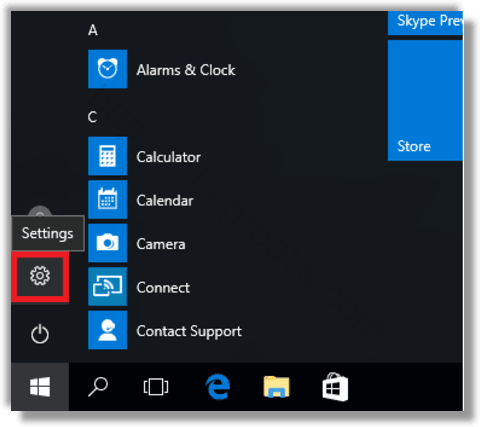
- STEP 1: At first, open the Settings app.
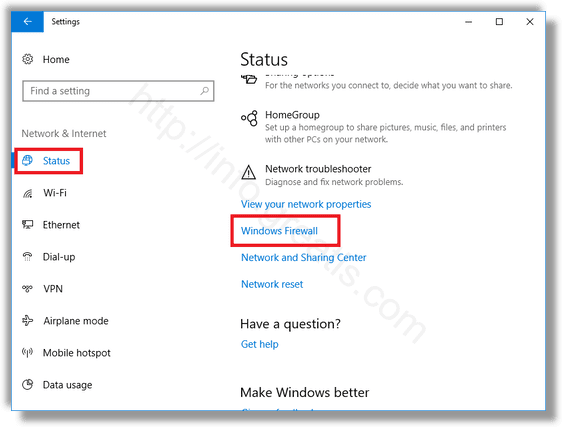
- STEP 2: Then go to Network & Internet – Status.

- STEP 3: After that, the link Windows Firewall at the right pane.
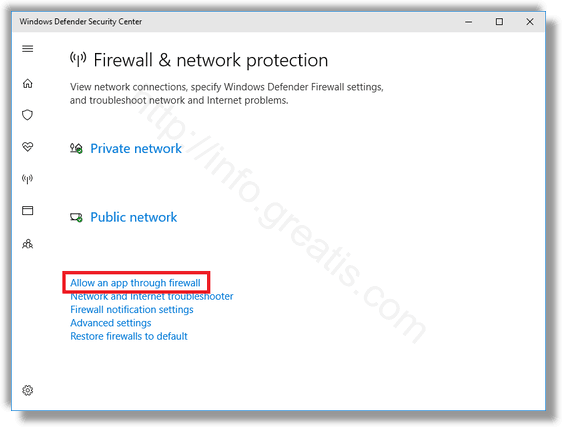
- STEP 4: Then click the link Allow an app or feature through Windows Firewall on the left side of the new opened window.
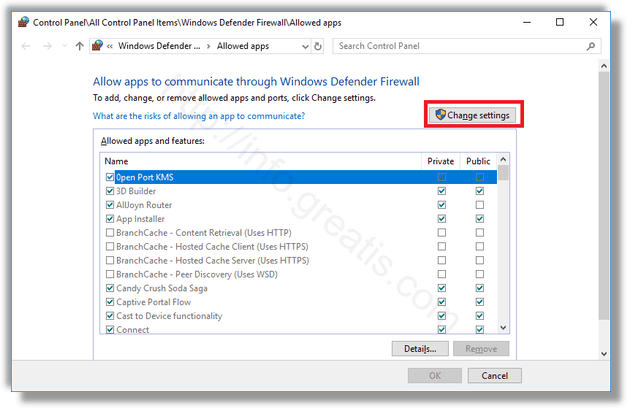
- STEP 5: Click the button Change settings if you have UAC enabled to unblock other buttons.
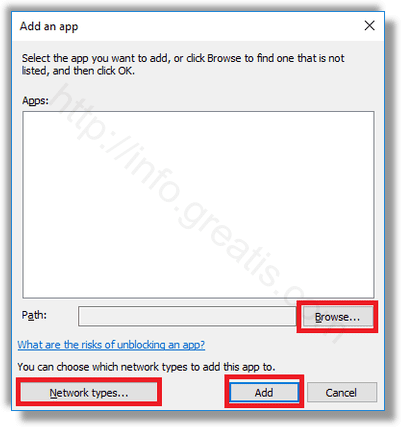
- STEP 6: Finally click on the button Allow another app
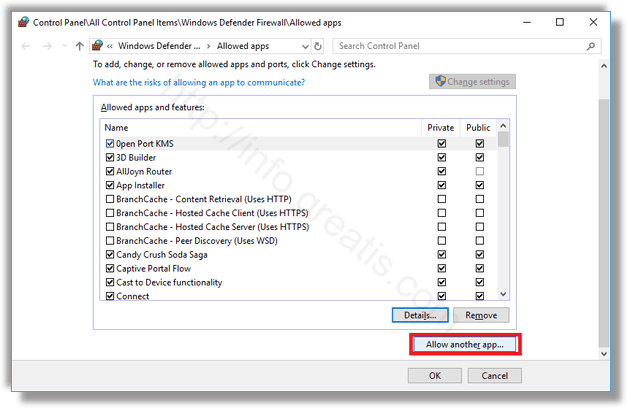
and choose an app you want to allow through Windows Firewall. Choose Network types and press Add.